5. Configure and test
Get the device onto your Wi‑Fi, add it to Home Assistant, and check that modes, lux, the LED, and the reset work.
What the screen shows
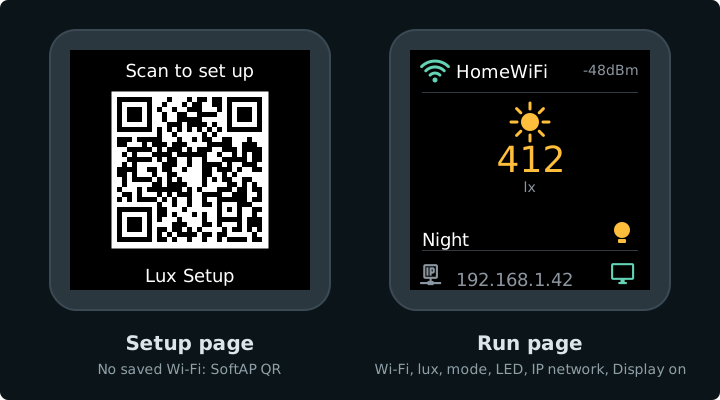
TFT layout from the firmware. Left: SoftAP QR (Lux Setup). Right: run page — Wi‑Fi status, live lux, mode, LED state, IP, Display-on cue. Run-page values are samples.
Connect to your Wi‑Fi
While the device has no saved network, the screen shows a QR code and the device broadcasts its own hotspot:
| Setting | Value |
|---|---|
| Hotspot name | Lux Setup |
| Hotspot password | setup1234 |
From your phone (QR code)
- Point your phone camera at the QR code on the screen and tap the Wi‑Fi prompt to join Lux Setup.
- A setup page opens automatically. If it doesn't, open
http://192.168.4.1in the browser. - Pick your home SSID, enter the password, tap Save.
- Wait for the device to join. SoftAP turns off and the screen switches to the run page (Wi‑Fi status, lux, mode, LED, IP).
After a successful join, the serial log looks like this (SSID and IP will differ on your network):
.venv/bin/esphome logs firmware/lux.yaml --device /dev/ttyACM0
…
[D][wifi:708]: Loaded settings: …
[I][wifi:1732]: Connected
[D][wifi:1127]: Disabling AP
[C][wifi:1392]:   IP Address: …
[C][wifi:1403]:   SSID: '…'
  Hostname: 'esp32-c3-ha-lux-…'
…
Other onboarding (not in this guide)
The firmware also enables Improv over BLE and serial. This tutorial only documents the QR + captive portal path above.
Add it to Home Assistant
Once the device is on your network, Home Assistant normally finds it by itself:
- Go to Settings → Devices & services. A discovered ESPHome device appears at the top.
- Click Add and confirm. Home Assistant sets the device's encryption key as it adds it.
- Open the device page. You should see Illuminance, LED, Mode, Display, Factory Reset, and Restart, plus Wi‑Fi signal and uptime under Diagnostic. Under Configuration: Schedule Start, Schedule End (time pickers), Night On Lux, and Night Off Lux.
If nothing is discovered, add the ESPHome integration manually:
| Field | Value |
|---|---|
| Host | the device IP (from the log, the run page, or your router) |
| Port | 6053 |
When Home Assistant is connected, the serial log shows an API client (your IP will differ):
[D][api.connection:…]: aioesphomeapi (192.…
Test it
| Test | What to do | Expected result |
|---|---|---|
| Off (default) | Leave Mode on Off. Toggle LED in Home Assistant | Physical LED and the screen bulb icon follow on/off |
| Schedule | Set Schedule Start / Schedule End (time pickers under Configuration), set Mode to Schedule | LED on inside the window, off outside. Unplug Wi‑Fi briefly — behaviour continues from the stored window (needs a valid clock) |
| Night | Set Night On Lux / Night Off Lux, set Mode to Night. Cover the sensor, then expose it | Lux drops → LED on; lux rises past the off threshold → LED off |
| Display | Turn Display off in Home Assistant | Screen goes dark; turn it back on and the panel lights again |
| Reboot | Press RST, or unplug the board briefly | Reconnects on its own; run page stays up (no QR flash). Mode and thresholds survive |
| Factory reset | Hold BOOT for 5 seconds, then let go (or use Factory Reset in HA) | Device restarts and shows the QR code again; Mode returns to Off after setup |
How fast Schedule / Night react
Lux is read every 5 s. apply_mode runs every 15 s (and when you change Mode). So after lux crosses a Night threshold, or the clock enters/leaves a Schedule window, the LED can take up to about 15 s to turn on or off. In Off, Home Assistant toggles the LED immediately. Details: Lux and LED, Modes.
Settings survive a normal reboot. Factory reset clears Wi‑Fi and the mode / schedule / threshold prefs; the same binary stays on the chip.
After a factory reset, Home Assistant marks the device unavailable. Repeat Connect to your Wi‑Fi, then delete the old device in Home Assistant and add it again, because the reset erased the encryption key it was using.
Done when
- The run page shows live lux, the mode name, and LED state on your Wi‑Fi
- Home Assistant shows Illuminance, LED, and Mode
- Off / Schedule / Night and Display behave as in the table
- Factory reset brings back SoftAP and the QR code