Display
The 240×240 ST7789 needs a SPI bus, a backlight, fonts, a QR payload, and two pages. Home Assistant gets a Display switch to turn the backlight on or off.
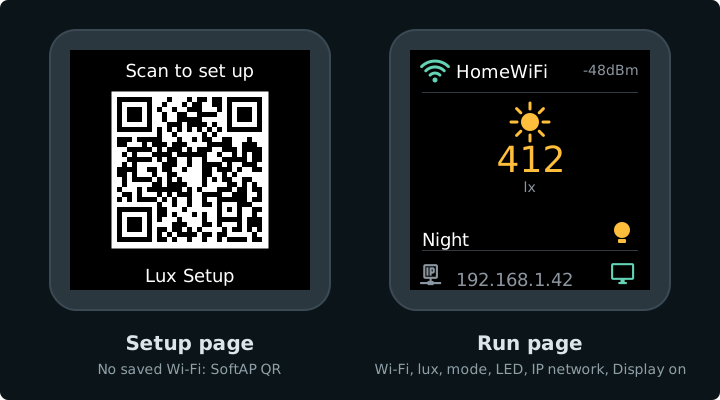
Mock-up from the display code: SoftAP QR, then Wi‑Fi status, live lux, mode, LED state, IP, and a display-on cue. Run-page values are samples.
Pins
| Signal | GPIO | Set in | Wired in |
|---|---|---|---|
| SCK / SCL | 1 | spi |
Display |
| MOSI / SDA | 0 | spi |
same |
| CS | 10 | display |
same |
| DC | 3 | display |
same |
| RST | 7 | display |
same |
| BL | 21 | output |
same |
Silk on the module may say SCL or SCK for the clock — same net.
SPI bus
spi:
  clk_pin: GPIO1
  mosi_pin: GPIO0
The display only receives data, so the bus has no MISO pin. CS, DC and RST are set on the display block.
Backlight and Display switch
output:
  - platform: ledc
    id: backlight_pwm
    pin: GPIO21

light:
  - platform: monochromatic
    id: backlight
    output: backlight_pwm
    internal: true
    restore_mode: ALWAYS_OFF

switch:
  - platform: template
    name: Display
    id: tft_enable
    icon: mdi:monitor
    optimistic: true
    restore_mode: RESTORE_DEFAULT_ON
    turn_on_action:
      - light.turn_on:
          id: backlight
          brightness: 100%
    turn_off_action:
      - light.turn_off: backlight
| Key | What it does |
|---|---|
ledc output |
PWM on GPIO21 for the backlight |
light (internal) |
Drives brightness; not shown in Home Assistant |
switch Display |
On/off in Home Assistant — turns the TFT backlight fully on or off |
RESTORE_DEFAULT_ON |
Remembers the last Display state; defaults to on |
Readings keep updating while the backlight is off.
Fonts and QR
font:
  - file: "gfonts://Roboto@500"
    id: font_big
    size: 36
  - file: "gfonts://Roboto"
    id: font_text
    size: 18
  - file: "gfonts://Roboto"
    id: font_small
    size: 14
  - file: "https://raw.githubusercontent.com/Templarian/MaterialDesign-Webfont/master/fonts/materialdesignicons-webfont.ttf"
    id: font_mdi
    size: 26
    glyphs:
      - "\U000F0432"  # qrcode
      - "\U000F0C90"  # ip-network-outline
      - "\U000F05AA"  # wifi-off
      - "\U000F091F"  # wifi-strength-1
      - "\U000F0922"  # wifi-strength-2
      - "\U000F0925"  # wifi-strength-3
      - "\U000F0928"  # wifi-strength-4
      - "\U000F0379"  # monitor
      - "\U000F06E8"  # lightbulb-on
      - "\U000F0336"  # lightbulb-outline
  - file: "https://raw.githubusercontent.com/Templarian/MaterialDesign-Webfont/master/fonts/materialdesignicons-webfont.ttf"
    id: font_mdi_lg
    size: 40
    glyphs:
      - "\U000F05A8"  # white-balance-sunny

qr_code:
  - id: setup_qr
    value: "WIFI:S:${ap_ssid};T:WPA;P:${ap_password};;"
| Piece | Role |
|---|---|
font_big (36) |
The lux value |
font_text (18) |
Mode, SSID and IP |
font_small (14) |
lx and the dBm reading |
font_mdi (26) |
Status row, LED bulb, monitor, QR |
font_mdi_lg (40) |
Large sun above the lux reading |
setup_qr |
Standard Wi‑Fi QR from the same ap_ssid / ap_password as the hotspot |
Only the glyphs listed are embedded, which keeps the firmware small. Roboto and the icon font are downloaded at compile time (needs internet once), then baked into the firmware.
Pages
page_setup draws the SoftAP QR. page_run is the connected dashboard — Wi‑Fi strength, live lux, mode label, LED on/off, IP, and a monitor icon for the Display switch. Full lambdas live in firmware/lux.yaml.
| Setting | What it does |
|---|---|
update_interval: 2s |
Redraw every two seconds |
invert_colors: true |
Matches this 240×240 module — flip if colours look wrong |
| First page in the list | Default is readings; boot logic shows QR only when no home Wi‑Fi is saved |
wifi_info text sensors |
Feed SSID and IP into page_run |
wifi_signal |
Feeds dBm and picks the strength icon |
| Page | Draws |
|---|---|
page_setup |
QR icon, "Scan to set up", SoftAP QR, hotspot name (Lux Setup) |
page_run |
Wi‑Fi strength + SSID + dBm; sun icon + lux + lx; mode (Off / Schedule / Night) + LED bulb; IP + display-on icon |
The monitor icon is always drawn. It does not change when you switch Display off — the backlight is off by then and the whole screen is dark.
Wi‑Fi setup chooses the page at boot and on connect / disconnect (QR only when unprovisioned).
When you change the run-page layout, keep this page and the mock-up in sync.
Next: Factory reset